Importing Content
This guide walks through importing source material into Decomposer so you can organize and process it.
Import from a URL
Section titled “Import from a URL”Go to File > New File from URL. Paste in the URL and hit enter.


Importing Markdown
Section titled “Importing Markdown”Create a new file with File > New File or Cmd+N on macOS.
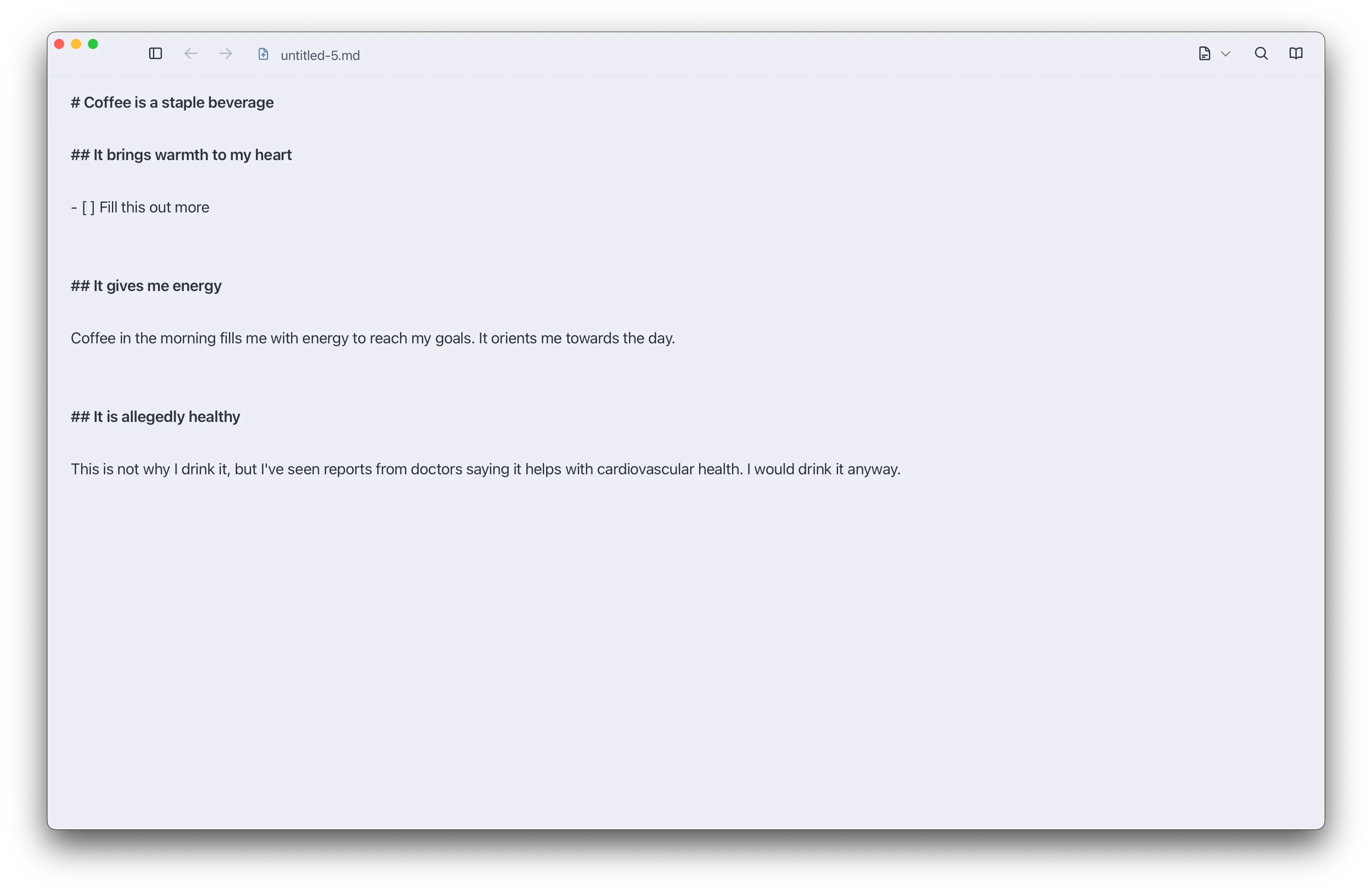
Go to the markdown view, by using the View switcher or hitting Cmd+2 on macOS.

Now we can paste in our markdown content.
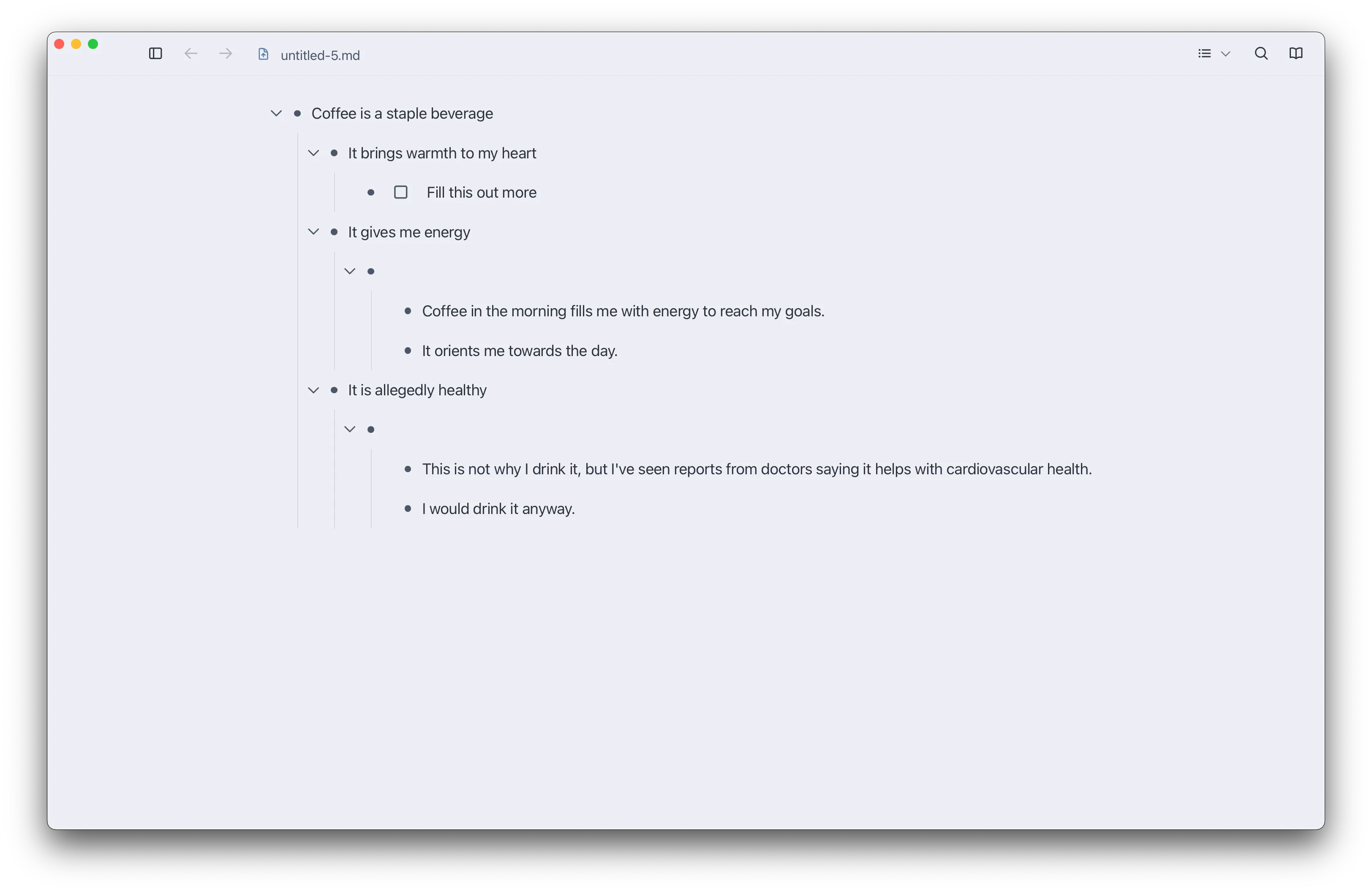
You can go back to the points view using the view switcher or by hitting Cmd+1 on macOS.
An existing file
Section titled “An existing file”Of course, if we have an existing markdown file, we don’t need to import it. We can just open it.
If the file is in the folder you’re connected to, you can open it using the Files Sidebar (which can be toggled with Cmd+B on macOS).
Otherwise, you can open it using File > Open File or Cmd+O on macOS.